
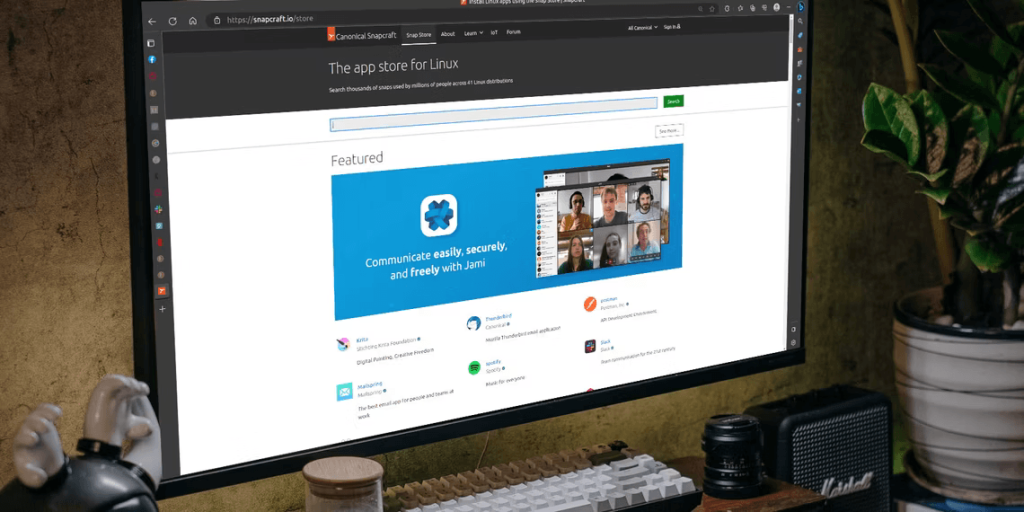
Snap Package Cleanup on Linux Snap package offer a streamlined approach to software installation on Linux systems, making it convenient to obtain and manage various applications. However, this convenience comes at the cost of disk space, as Snap packages tend to occupy a substantial amount of storage. In this article, we will delve into the
Snap Package Cleanup on Linux
Snap package offer a streamlined approach to software installation on Linux systems, making it convenient to obtain and manage various applications. However, this convenience comes at the cost of disk space, as Snap packages tend to occupy a substantial amount of storage. In this article, we will delve into the process of efficiently cleaning up Snap packages on Linux to free up valuable disk space while maintaining the reliability and performance of your system.
Understanding Snap Packages and Disk Space Usage
Snap packages have revolutionized package management on Linux by introducing an innovative approach to handling software dependencies. Unlike traditional package managers that rely on separate components to function, Snap packages encapsulate both the core software and its dependencies within a single package. While this approach streamlines installation and ensures compatibility, it also contributes to the bulkiness of Snap packages.
When software depends on other packages or libraries to operate effectively, managing these dependencies becomes crucial. Snap addresses this challenge by packaging software and its dependencies together, eliminating the need to hunt for and install separate components. While this method offers a comprehensive solution, it results in larger software sizes compared to package managers like APT and Pacman.
Additionally, Snap packages retain rollback versions of software after updates. This practice ensures that users can revert to a previous version if issues arise. However, maintaining both the current and previous versions consumes considerable disk space, adding to the package’s overall bulkiness.
Image by https://www.makeuseof.com/
Steps to Clean Up Snap Packages on Linux
Remove Rollback Packages:
Snap’s ability to roll back to previous software versions contributes to its disk space consumption. To identify and remove these versions, execute the command snap list –all. By targeting and removing the outdated versions using the revision number, you can regain disk space without compromising functionality.
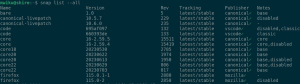
Image by https://www.makeuseof.com/
Remove Unused Snap Packages:
Regularly listing installed Snap packages (sudo snap list) can help identify unused applications. Removing these packages using sudo snap remove package_name will free up disk space. Monitoring storage usage with the du -h ~/snap command ensures efficient space management.
Remove Unused Package Dependencies:
While Snap excels in dependency management, it may install more components than necessary. Utilize your distribution’s default package manager to remove unused dependencies:
On Debian-based systems:
sudo apt autoremove
On RHEL-based systems:
sudo dnf autoremove
On Arch-based systems:
sudo pacman -Rns $(pacman -Qdtq)
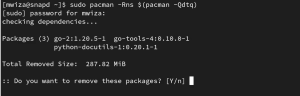
Image by https://www.makeuseof.com/
Fine-tuning dependencies optimizes disk space usage and maintains system performance.
Consider Alternative Package Managers:
On systems with limited disk space, exploring alternative package managers like APT, Pacman, or DNF can be beneficial. While some software remains exclusive to Snap packages, switching to other managers for compatible applications can reduce overall disk usage.
Conclusion
Managing snap Package disk space on Linux requires a strategic approach to maintain optimal system performance. By understanding the reasons behind Snap’s bulkiness and following the steps outlined in this article, users can effectively clean up Snap packages, free up disk space, and ensure their Linux systems remain efficient and responsive. Balancing the advantages of Snap’s dependency management with the need for efficient disk space usage is essential for a seamless user experience on Linux.




















Leave a Comment
Your email address will not be published. Required fields are marked with *