
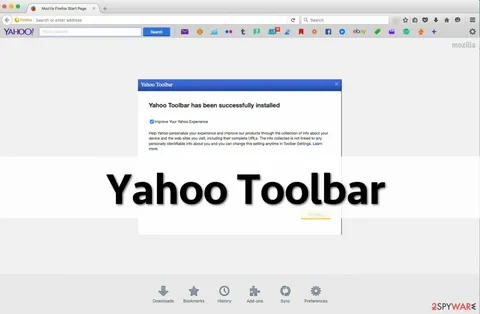
The Yahoo Toolbar was once one of the most popular browser add-ons for quick web searches, bookmarks, email access, news updates, and browsing tools. Many users still rely on it for easy navigation and productivity. However, a common issue users face is the Yahoo Toolbar missing problem. The toolbar may suddenly disappear from the browser,
The Yahoo Toolbar was once one of the most popular browser add-ons for quick web searches, bookmarks, email access, news updates, and browsing tools. Many users still rely on it for easy navigation and productivity. However, a common issue users face is the Yahoo Toolbar missing problem. The toolbar may suddenly disappear from the browser, fail to load properly, or stop working after a browser update.
If your Yahoo Toolbar has vanished, you are not alone. This issue can happen for several reasons, including browser settings changes, disabled extensions, outdated software, corrupted files, or malware interference. Fortunately, most Yahoo Toolbar problems can be fixed with simple troubleshooting steps.
In this detailed guide, you will learn why the Yahoo Toolbar disappears, how to restore it in different browsers, and tips to prevent the issue from happening again.
What Is Yahoo Toolbar?
Yahoo Toolbar is a browser extension designed to improve browsing convenience. It offers features such as:
- Quick Yahoo Search access
- Direct Yahoo Mail notifications
- Bookmark management
- Weather and news updates
- Web shortcuts
- Anti-spyware tools
- Autofill features
Although modern browsers have evolved significantly, many users still prefer Yahoo Toolbar for its simplicity and integrated Yahoo services.
Why Is Yahoo Toolbar Missing?
There are multiple reasons why the Yahoo Toolbar may disappear from your browser. Understanding the cause helps you apply the correct fix.
1. Browser Update Issues
After updating browsers like Google Chrome, Mozilla Firefox, or Microsoft Edge, certain extensions may become incompatible. This can automatically disable or remove Yahoo Toolbar.
Common Symptoms
- Toolbar disappears after browser restart
- Yahoo extension no longer visible
- Toolbar settings reset automatically
2. Toolbar Extension Disabled
Sometimes the toolbar is not removed but simply disabled in the browser’s extension settings.
Possible Causes
- Accidental disabling
- Browser performance optimization
- Extension conflicts
3. Corrupted Browser Files
Corrupted cache files or browser settings can prevent the toolbar from loading properly.
Signs of Corruption
- Browser crashes frequently
- Toolbar appears briefly then disappears
- Slow browser performance
4. Malware or Unwanted Programs
Certain malware programs target browser extensions and toolbars. They may hide, disable, or remove Yahoo Toolbar without permission.
Warning Signs
- Unwanted pop-up ads
- Redirected searches
- Unknown browser extensions
5. Outdated Yahoo Toolbar Version
Using an old version of the toolbar may lead to compatibility problems with newer browser updates.
How to Restore Yahoo Toolbar in Google Chrome
Google Chrome handles extensions differently from older browsers. If Yahoo Toolbar is missing, follow these steps.

Step 1: Check Installed Extensions
- Open Chrome
- Click the three-dot menu
- Go to Extensions
- Look for Yahoo Toolbar
If found:
- Enable the extension
- Pin it to the toolbar
Step 2: Reinstall Yahoo Toolbar
If the extension is missing completely:
- Remove old Yahoo extensions
- Restart Chrome
- Install the latest Yahoo Toolbar version
- Restart the browser again
Step 3: Reset Chrome Settings
If the toolbar still does not appear:
- Open Chrome Settings
- Click Reset and Cleanup
- Choose Restore settings to original defaults
- Restart Chrome
This can resolve hidden extension conflicts.
Fix Yahoo Toolbar Missing in Mozilla Firefox
Firefox users may experience toolbar disappearance after updates or profile corruption.
Enable the Toolbar
- Open Firefox
- Click the menu icon
- Select Add-ons and Themes
- Find Yahoo Toolbar
- Enable it
Customize Firefox Toolbar
Sometimes the toolbar is installed but hidden.
To Restore:
- Right-click near the browser toolbar
- Select Customize Toolbar
- Drag Yahoo Toolbar back into place
Create a New Firefox Profile
If problems continue:
- Type
about:profilesin Firefox address bar - Create a new profile
- Restart Firefox
- Reinstall Yahoo Toolbar
Fix Yahoo Toolbar Missing in Microsoft Edge
Microsoft Edge may disable older extensions automatically.
Check Edge Extensions
- Open Edge
- Click the three-dot menu
- Go to Extensions
- Enable Yahoo Toolbar
Update Microsoft Edge
Older Edge versions may not support some Yahoo features.
To Update:
- Open Settings
- Select About Microsoft Edge
- Install updates if available
How to Fix Yahoo Toolbar Missing After Windows Update
Windows updates can sometimes modify browser settings or disable extensions.
Solution 1: Restart the Browser
A full browser restart may reload missing extensions.
Solution 2: Reinstall Browser Extensions
Reinstalling Yahoo Toolbar often restores missing files damaged during system updates.
Solution 3: Check Security Programs
Some antivirus software may block browser toolbars.
What to Do:
- Temporarily disable browser protection
- Check extension permissions
- Re-enable security after testing
Yahoo Toolbar Missing on Internet Explorer
Although Internet Explorer is outdated, some users still rely on it.
Enable Toolbar Add-ons
- Open Internet Explorer
- Click Tools
- Select Manage Add-ons
- Enable Yahoo Toolbar
Reset Internet Explorer
If the toolbar still does not appear:
- Open Internet Options
- Click Advanced
- Select Reset
- Restart the browser
Common Error Messages Related to Yahoo Toolbar
Users may see several errors connected to missing Yahoo Toolbar problems.
Typical Messages
- Yahoo Toolbar not responding
- Yahoo Toolbar unavailable
- Failed to load Yahoo Toolbar
- Toolbar extension disabled
- Yahoo Toolbar installation failed
Most of these errors are caused by browser conflicts or outdated software.
How to Reinstall Yahoo Toolbar Properly
A clean reinstall can solve most toolbar issues.
Step-by-Step Reinstallation
Step 1: Remove Existing Toolbar
- Open browser extensions
- Remove Yahoo Toolbar
- Restart browser
Step 2: Clear Browser Cache
Delete:
- Cookies
- Cached images
- Temporary files
Step 3: Download Latest Version
Install the newest compatible toolbar version.
Step 4: Restart Computer
Restarting ensures all files load correctly.
How to Prevent Yahoo Toolbar from Disappearing Again
Once the toolbar is restored, follow these tips to avoid future issues.
Keep Your Browser Updated
Outdated browsers may conflict with extensions.
Recommended Browsers
- Google Chrome
- Mozilla Firefox
- Microsoft Edge
Avoid Installing Unknown Extensions
Too many browser extensions can cause conflicts.
Best Practice
Only install trusted add-ons from official stores.
Run Antivirus Scans Regularly
Malware often targets browser settings and toolbars.
Recommended Actions
- Schedule weekly scans
- Remove suspicious software
- Keep antivirus updated
Backup Browser Settings
Backing up your browser profile can help restore missing settings quickly.
Yahoo Toolbar Missing on Mac
Mac users may also encounter missing toolbar issues due to Safari or Chrome restrictions.
Fixes for Mac Users
Check Browser Permissions
macOS security settings may block extensions.
Reinstall the Extension
Remove and reinstall Yahoo Toolbar.
Update macOS
Outdated macOS versions can cause browser compatibility issues.
Browser Compatibility Issues with Yahoo Toolbar
Modern browsers are moving away from older toolbar technology. Some toolbar features may not work properly anymore.
Possible Compatibility Problems
- Toolbar not loading
- Missing search box
- Broken shortcuts
- Slow browser startup
Solution
Use the latest supported browser version and updated Yahoo extensions.
Alternative Solutions If Yahoo Toolbar Cannot Be Restored
If Yahoo Toolbar no longer works correctly, consider these alternatives.
Use Yahoo Homepage as Default
Set Yahoo as:
- Default homepage
- Default search engine
Install Yahoo Browser Extensions
Modern lightweight Yahoo extensions provide:
- Mail notifications
- Search access
- News updates
Use Browser Bookmarks
Save Yahoo services directly to the bookmarks bar for quick access.
Troubleshooting Advanced Yahoo Toolbar Problems
Some issues require deeper troubleshooting.
Clear DNS Cache
Windows Steps
- Open Command Prompt
- Type:
ipconfig /flushdns
- Press Enter
Disable Hardware Acceleration
Some browser rendering settings may interfere with extensions.
In Chrome:
- Open Settings
- Go to System
- Disable hardware acceleration
Create a New Browser User Profile
Corrupted browser profiles can remove extensions repeatedly.
Signs You Need a Browser Reset
If Yahoo Toolbar disappears repeatedly, your browser settings may be heavily corrupted.
Symptoms Include
- Frequent crashes
- Multiple missing extensions
- Browser redirects
- Slow startup times
A complete browser reset often fixes these issues.
Frequently Asked Questions
Why did my Yahoo Toolbar disappear suddenly?
The toolbar may disappear because of browser updates, disabled extensions, malware, or corrupted browser settings.
Can I reinstall Yahoo Toolbar safely?
Yes, reinstalling from a trusted source is generally safe and often resolves missing toolbar problems.
Does Chrome still support Yahoo Toolbar?
Chrome supports many Yahoo-related extensions, though older toolbar versions may not work properly.
Why does Yahoo Toolbar keep disappearing?
Repeated disappearance usually indicates browser conflicts, malware, or profile corruption.
Is Yahoo Toolbar still useful?
Many users still prefer it for quick Yahoo access, bookmarks, and integrated browsing tools.
Final Thoughts
The Yahoo Toolbar missing issue can be frustrating, especially if you rely on it daily for browsing and Yahoo services. Fortunately, the problem is usually caused by manageable issues such as disabled extensions, browser updates, corrupted settings, or outdated software.
By following the troubleshooting methods in this guide, you can restore the Yahoo Toolbar quickly and improve browser stability. Regular updates, malware scans, and careful extension management can also help prevent the issue from returning.
If basic fixes do not work, reinstalling the toolbar or resetting your browser often provides the best solution. Keeping your browser optimized and secure ensures a smoother browsing experience and reduces future toolbar problems.